> ## Documentation Index
> Fetch the complete documentation index at: https://docs.stac.dev/llms.txt
> Use this file to discover all available pages before exploring further.
# Use Stac in VS Code
> Install and configure the Stac extension for VS Code. Get live preview, wrap quick-fixes, and snippets for Server-Driven UI — right inside your editor.
## Prerequisites
* **Flutter SDK** with Dart `3.9.2+`
* A Flutter project using the [Stac](https://stac.dev) framework
## Install the extension
Click the link for your IDE to install directly:
* [Install for VS Code](vscode:extension/StacDev.stac-vscode)
* [Install for Cursor](cursor:extension/StacDev.stac-vscode)
* [Install for Antigravity](antigravity:extension/StacDev.stac-vscode)
Or in VS Code, press `Cmd+Shift+X` (Mac) or `Ctrl+Shift+X` (Windows/Linux) to open the Extensions view, search for "Stac", and click **Install**.
## Get started
1. **Open a Stac project** — open any Flutter project that uses the Stac framework.
2. **Open the Command Palette** — press `⌘⇧P` (Mac) or `Ctrl+Shift+P` (Windows / Linux) and type **"Stac"**.
3. **Launch a live preview** — run **`Stac: Open Preview`** to open a side-by-side preview of the active `@StacScreen`.
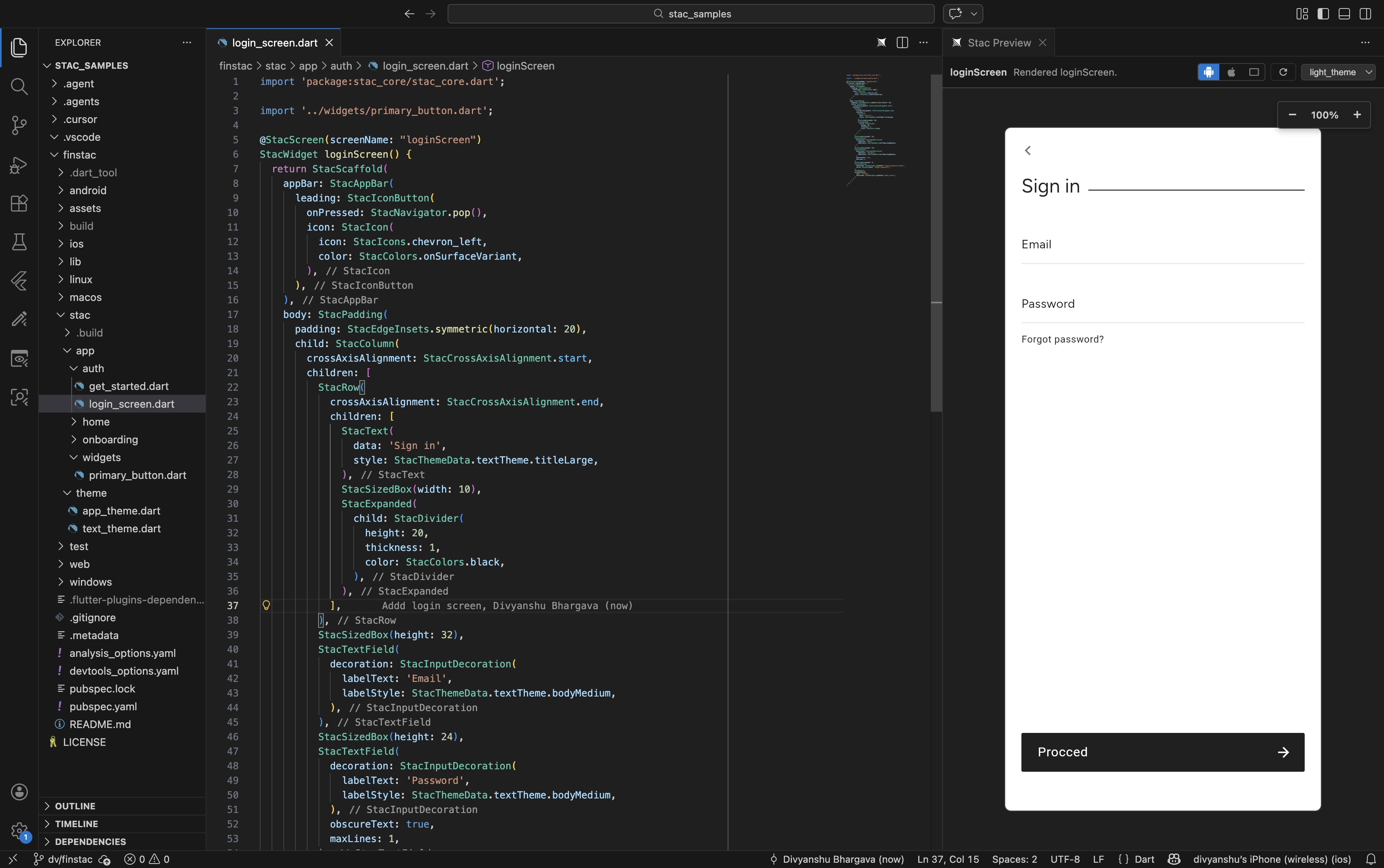 ## Use live preview
The preview panel renders your `@StacScreen` in real time and updates automatically on save.
* **Device toggles** — switch between Android, iOS, and Web viewports.
* **Theme picker** — preview with any `@StacThemeRef` theme defined in your project.
* **Auto-refresh** — every time you save, the preview re-renders. Disable this with the `stacVscode.preview.autoRefreshOnSave` setting.
### Preview commands
| Command | Description |
| ----------------------------- | ------------------------------------------------- |
| `Stac: Open Preview` | Open the live preview panel for the active screen |
| `Stac: Select Preview Screen` | Switch to a different screen in the current file |
| `Stac: Stop Preview` | Stop the preview host process |
## Use wrap quick-fixes
Place your cursor on any Stac widget expression and press `⌘.` (Mac) or `Ctrl+.` (Windows / Linux) to wrap it with a preset widget:
`StacContainer` · `StacPadding` · `StacCenter` · `StacAlign` · `StacSizedBox` · `StacExpanded`
Select **Wrap with Stac widget…** to wrap with any custom Stac widget class in your project.
You can customise which preset wrappers appear in the quick-fix menu with the `stacVscode.wrapPresets` setting, or disable wrap actions entirely with `stacVscode.enableWrapQuickFix`.
## Use snippets
In files containing `@StacScreen`, `@StacThemeRef`, or `package:stac_core`, the following snippets are available:
| Prefix | What it creates |
| ------------- | --------------------- |
| `stac screen` | A new screen template |
| `stac theme` | A new theme template |
Snippets can be toggled with the `stacVscode.enableSnippets` setting.
## Commands and shortcuts
Open the Command Palette (`⌘⇧P` / `Ctrl+Shift+P`) and type **"Stac"** to see all available commands:
| Command | Description |
| ----------------------------- | ------------------------------------------- |
| `Stac: Open Preview` | Open the live preview panel |
| `Stac: Select Preview Screen` | Switch screen in the current file |
| `Stac: Stop Preview` | Stop the preview host |
| `Stac: Regenerate Catalog` | Rebuild the widget catalog from `stac_core` |
## Configure settings
Open VS Code settings (`⌘,` / `Ctrl+,`) and search **"Stac"** to customise the extension.
### Extension settings
| Setting | Default | Description |
| -------------------------------------- | ----------------- | -------------------------------------------- |
| `stacVscode.enableWrapQuickFix` | `true` | Enable wrap quick-fix actions |
| `stacVscode.wrapPresets` | All presets | Preset wrappers shown in the quick-fix menu |
| `stacVscode.enableSnippets` | `true` | Enable `stac screen` / `stac theme` snippets |
| `stacVscode.preview.enable` | `true` | Enable preview commands |
| `stacVscode.preview.autoRefreshOnSave` | `true` | Refresh the preview on save |
| `stacVscode.preview.jsonStrategy` | `runnerThenBuild` | JSON generation strategy |
| `stacVscode.preview.hostPort` | `47841` | Local preview host port |
| `stacVscode.preview.startupTimeoutMs` | `120000` | Host startup timeout (ms) |
## Troubleshooting
### Preview won't start
1. Open **Output → Stac Preview** for detailed logs.
2. Ensure your project builds successfully with `flutter run`.
3. Confirm the active file contains a `@StacScreen` annotation.
4. Try restarting the preview host by running **`Stac: Stop Preview`**, then **`Stac: Open Preview`**.
### Extension won't install
* Ensure you have a compatible version of VS Code (1.80.0 or later).
* Check that VS Code has permission to install extensions.
* Try installing directly from the [VS Code Marketplace](https://marketplace.visualstudio.com/items?itemName=StacDev.stac-vscode).
## Uninstall the extension
1. Open the Extensions view (`⇧⌘X` / `Ctrl+Shift+X`).
2. Search for **"Stac"**.
3. Click **Uninstall**.
Found a bug or have a feature request? Open an issue on GitHub.
## Use live preview
The preview panel renders your `@StacScreen` in real time and updates automatically on save.
* **Device toggles** — switch between Android, iOS, and Web viewports.
* **Theme picker** — preview with any `@StacThemeRef` theme defined in your project.
* **Auto-refresh** — every time you save, the preview re-renders. Disable this with the `stacVscode.preview.autoRefreshOnSave` setting.
### Preview commands
| Command | Description |
| ----------------------------- | ------------------------------------------------- |
| `Stac: Open Preview` | Open the live preview panel for the active screen |
| `Stac: Select Preview Screen` | Switch to a different screen in the current file |
| `Stac: Stop Preview` | Stop the preview host process |
## Use wrap quick-fixes
Place your cursor on any Stac widget expression and press `⌘.` (Mac) or `Ctrl+.` (Windows / Linux) to wrap it with a preset widget:
`StacContainer` · `StacPadding` · `StacCenter` · `StacAlign` · `StacSizedBox` · `StacExpanded`
Select **Wrap with Stac widget…** to wrap with any custom Stac widget class in your project.
You can customise which preset wrappers appear in the quick-fix menu with the `stacVscode.wrapPresets` setting, or disable wrap actions entirely with `stacVscode.enableWrapQuickFix`.
## Use snippets
In files containing `@StacScreen`, `@StacThemeRef`, or `package:stac_core`, the following snippets are available:
| Prefix | What it creates |
| ------------- | --------------------- |
| `stac screen` | A new screen template |
| `stac theme` | A new theme template |
Snippets can be toggled with the `stacVscode.enableSnippets` setting.
## Commands and shortcuts
Open the Command Palette (`⌘⇧P` / `Ctrl+Shift+P`) and type **"Stac"** to see all available commands:
| Command | Description |
| ----------------------------- | ------------------------------------------- |
| `Stac: Open Preview` | Open the live preview panel |
| `Stac: Select Preview Screen` | Switch screen in the current file |
| `Stac: Stop Preview` | Stop the preview host |
| `Stac: Regenerate Catalog` | Rebuild the widget catalog from `stac_core` |
## Configure settings
Open VS Code settings (`⌘,` / `Ctrl+,`) and search **"Stac"** to customise the extension.
### Extension settings
| Setting | Default | Description |
| -------------------------------------- | ----------------- | -------------------------------------------- |
| `stacVscode.enableWrapQuickFix` | `true` | Enable wrap quick-fix actions |
| `stacVscode.wrapPresets` | All presets | Preset wrappers shown in the quick-fix menu |
| `stacVscode.enableSnippets` | `true` | Enable `stac screen` / `stac theme` snippets |
| `stacVscode.preview.enable` | `true` | Enable preview commands |
| `stacVscode.preview.autoRefreshOnSave` | `true` | Refresh the preview on save |
| `stacVscode.preview.jsonStrategy` | `runnerThenBuild` | JSON generation strategy |
| `stacVscode.preview.hostPort` | `47841` | Local preview host port |
| `stacVscode.preview.startupTimeoutMs` | `120000` | Host startup timeout (ms) |
## Troubleshooting
### Preview won't start
1. Open **Output → Stac Preview** for detailed logs.
2. Ensure your project builds successfully with `flutter run`.
3. Confirm the active file contains a `@StacScreen` annotation.
4. Try restarting the preview host by running **`Stac: Stop Preview`**, then **`Stac: Open Preview`**.
### Extension won't install
* Ensure you have a compatible version of VS Code (1.80.0 or later).
* Check that VS Code has permission to install extensions.
* Try installing directly from the [VS Code Marketplace](https://marketplace.visualstudio.com/items?itemName=StacDev.stac-vscode).
## Uninstall the extension
1. Open the Extensions view (`⇧⌘X` / `Ctrl+Shift+X`).
2. Search for **"Stac"**.
3. Click **Uninstall**.
Found a bug or have a feature request? Open an issue on GitHub.