

Prerequisites
- Flutter SDK with Dart
3.9.2+ - A Flutter project using the Stac framework
Install the extension
Click the link for your IDE to install directly: Or in VS Code, pressCmd+Shift+X (Mac) or Ctrl+Shift+X (Windows/Linux) to open the Extensions view, search for “Stac”, and click Install.
Get started
- Open a Stac project — open any Flutter project that uses the Stac framework.
- Open the Command Palette — press
⌘⇧P(Mac) orCtrl+Shift+P(Windows / Linux) and type “Stac”. - Launch a live preview — run
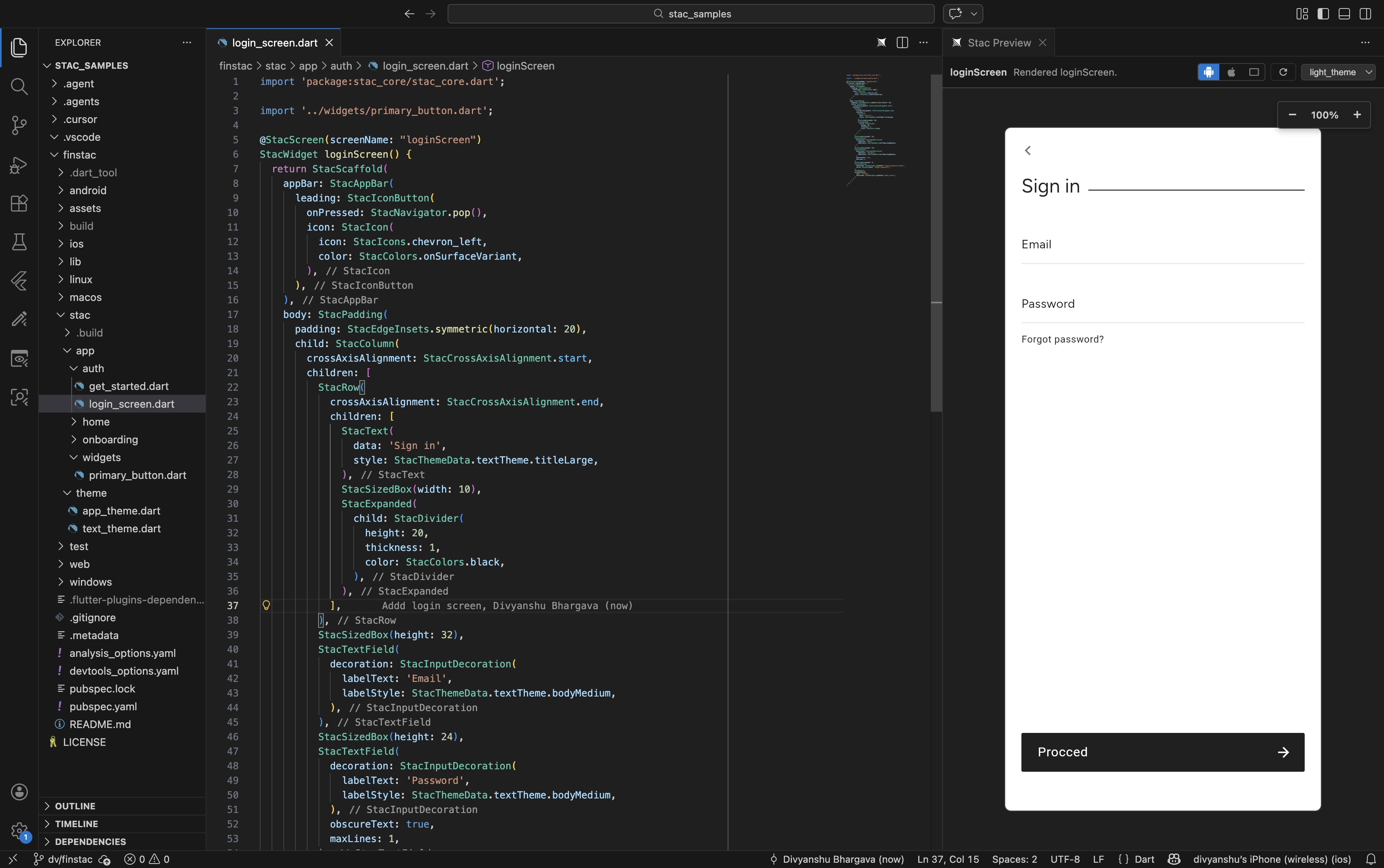
Stac: Open Previewto open a side-by-side preview of the active@StacScreen.
Use live preview
The preview panel renders your@StacScreen in real time and updates automatically on save.
- Device toggles — switch between Android, iOS, and Web viewports.
- Theme picker — preview with any
@StacThemeReftheme defined in your project. - Auto-refresh — every time you save, the preview re-renders. Disable this with the
stacVscode.preview.autoRefreshOnSavesetting.
Preview commands
Use wrap quick-fixes
Place your cursor on any Stac widget expression and press⌘. (Mac) or Ctrl+. (Windows / Linux) to wrap it with a preset widget:
StacContainer · StacPadding · StacCenter · StacAlign · StacSizedBox · StacExpanded
Select Wrap with Stac widget… to wrap with any custom Stac widget class in your project.
Use snippets
In files containing@StacScreen, @StacThemeRef, or package:stac_core, the following snippets are available:
Snippets can be toggled with the
stacVscode.enableSnippets setting.
Commands and shortcuts
Open the Command Palette (⌘⇧P / Ctrl+Shift+P) and type “Stac” to see all available commands:
Configure settings
Open VS Code settings (⌘, / Ctrl+,) and search “Stac” to customise the extension.
Extension settings
Troubleshooting
Preview won’t start
- Open Output → Stac Preview for detailed logs.
- Ensure your project builds successfully with
flutter run. - Confirm the active file contains a
@StacScreenannotation. - Try restarting the preview host by running
Stac: Stop Preview, thenStac: Open Preview.
Extension won’t install
- Ensure you have a compatible version of VS Code (1.80.0 or later).
- Check that VS Code has permission to install extensions.
- Try installing directly from the VS Code Marketplace.
Uninstall the extension
- Open the Extensions view (
⇧⌘X/Ctrl+Shift+X). - Search for “Stac”.
- Click Uninstall.
Report an Issue
Found a bug or have a feature request? Open an issue on GitHub.